
Hi! Welcome to Radio Bookmark and thank you for your membership with your local public radio station.
Let’s spend a few minutes going over the basics of the Radio Bookmark web site. We think you will find it easy to use and with a few quick pointers, you will be an expert in no time.
- 1
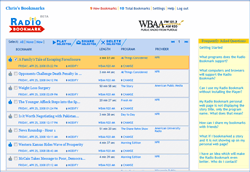 First, let’s look at the main Bookmark page. This is really the only page you’ll use except the optional Radio Bookmark Player when you are listening to a story — but more on that later. Let’s quickly cover the basics of uploading your bookmarks. As you probably know, you simply press the bookmark button on the Radio Bookmark when you want to follow-up on a story or find the piece of music. Then, the next time you insert your Radio Bookmark into your computer, the system will automatically upload the bookmarks to your web site. They will then appear on this page — the Bookmark page. Please note: If your computer is setup to not automatically load new software, you may have to select the bookmark.html file on the “RadioBkmark” drive.
- 2
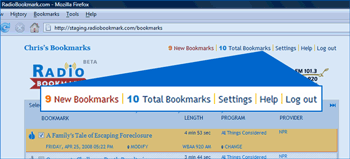 As you see here on my bookmark page, I have 10 bookmarks, 9 new bookmarks, of which 15 are displayed per page. Next to the bookmark count is the navigation bar to go to my settings, help and log out. There are just a few settings including your password, email address, name, your default radio station and whether you want the story to automatically start playing.
- 3
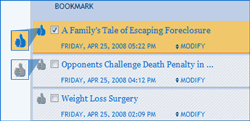 You can also see whether you pressed the thumbs up button (
 ) to bookmark a story or music because it was really interesting to you. If you did, the thumbs up icon will be highlighted as a reminder. You can also click the icon in your Bookmarks page to make it a favorite for future reference.
- 4
- If you look at my first bookmark, you can see on the first line — the title of the story, the length, the program and network provider. To play a story, click the title of the story. Your browser will automatically display the information for your story and allow you to listen to the audio again. For music programs, your browser will display the station playlist, and often have links available to purchase the music with proceeds going right back to your station! Then when you are done listening, press the browser BACK button to return to your bookmark page and play your next story. On the second line you can see the time of the bookmark, the bookmark modify button, the station, and the station change button. The modify button is used to change the bookmark — either to the story just before or just after in case you weren’t able to press the button when desired. And the change station button allows you to change to another participating public radio station if you were traveling out of town when you bookmarked a story.

- 5
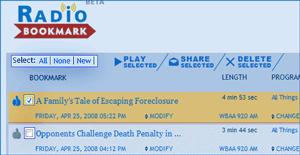 Additionally, you will notice the check box on each bookmark line. This is the way you select multiple bookmarks to share or delete at one time. If the check box is checked, the bookmark is considered to be “selected”. If you notice here, you can select all, none or the new bookmarks with the select control.
- For certain browsers, you can optionally install the Radio Bookmark Player. The rest of this tutorial will review the features offered by the Radio Bookmark Player. To install, please visit the Installation page.
- 7
 Let’s look at the Radio Bookmark Player in action. Select the checkbox of the stories you want to play on your bookmark page, then press
  . Here is my first bookmark playing. The player appears at the bottom of the page with the controls on the left and More Information in the center and right.
- 8
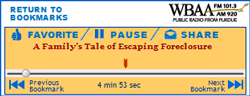 The controls of the player are pretty basic. The story will load and start playing. To Pause, press the center button which is
  during playback. Next to that button are the buttons FAVORITE, which toggles the favorite icon, and
  SHARE, which emails the story link to others. Below the controls is the audio slider bar which you can use to move forward or backwardsby dragging the small circle left or right. There's a dark red bookmark
  above the slider bar. This is the actual time you bookmarked the story. To play that exact portion of the story, slide the circle to the bookmark. If “Audio Not Automatically Replayed” is displayed, then no audio is available for this program from the content provider, or the audio will need to be manually selected from the displayed web page.
- Below the slider bar are
 Previous and
  Next bookmark buttons. These function based on the bookmarks you have selected on the bookmark page. If you clicked on the title to play just one bookmark, the next button will take you back to the bookmark page as only one story was selected. If you selected 3 stories, the next button will take you to the next story, until the last one, when it will return you to the bookmark page.
 - To return to the bookmark page, press the RETURN TO BOOKMARKS button in the upper left corner of the player. You can navigate back with the Back button in your browser, although sometimes the play status won’t be updated without a refresh.
- 9
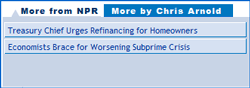 In the More Information section, you can peruse related stories and other stories by the same author or host. Depending on the story, author and network, some stories will have lots of related information and others will have little to none. For music programs there are typically links to allow you to purchase the music, with the proceeds benefiting your station. You can select these while listening to the audio of your current story.
- 10
- If you navigate away from the bookmarked story, the player will disappear although it will return with the BACK button from your browser.
Check out the frequently asked questions available on the main bookmark screen and through the help link. There is much more information there.
If you can think of a way to make Radio Bookmark better, please click the Feedback to Radio Bookmark link at the bottom of every page. We are always looking for ways to make it even better.
By the way, don’t worry about ejecting the radio bookmark through windows or on your mac, we have designed it so you can take it out anytime and everything will work just fine.
Thanks again, for choosing the Radio Bookmark, and supporting public radio!